
Table of contents
- What Is Google reCAPTCHA?
- Why Websites Add reCAPTCHA to Their Contact or Registration Forms
- How reCAPTCHA Works?
- reCAPTCHA v3 (Invisible and Score-based)
- reCAPTCHA v2 (“I’m not a robot” Checkbox)
- Common Misconceptions (let’s clear these up)
- CLDY.com’s Practical Recommendation for Choosing reCAPTCHA
- How-To: Add reCAPTCHA to Your Site (step-by-step)
- Final Word
What Is Google reCAPTCHA?
Google reCAPTCHA is a free tool that helps websites tell humans and bots apart. In practice, it blocks automated scripts from abusing your forms—think spam sign-ups, fake checkout attempts, credential stuffing, and comment spam. If you’ve ever clicked a checkbox that says “I’m not a robot” or had to identify traffic lights in a grid of photos, that’s reCAPTCHA doing its job.
Why Websites Add reCAPTCHA to Their Contact or Registration Forms
On the internet, there are countless malicious bots and hackers constantly scanning for vulnerabilities to exploit. One of the easiest targets is your website’s contact form or account registration form — because it’s an open entry point to your system.
Here’s what can happen if your forms aren’t protected:
- Overwhelmed email systems – Attackers can use automated bots to submit your form repeatedly with fake data. If your form is configured to send an automatic reply (autoresponder) to the email entered, it can start sending hundreds or thousands of messages to invalid or random addresses. This turns your domain into a source of spam in the eyes of mail providers, causing your legitimate emails — even to real customers — to be blocked or sent to spam folders.
- Website overload and downtime – Bots can also flood your site with fake form submissions, overloading your server’s CPU, bandwidth, and database storage. This not only slows your site down but can cause real visitors’ submissions to get buried in spam — leading to missed leads, lost sales, and wasted cleanup time.
- Fake account abuse – On registration forms, bots may create fake accounts to access your platform, spam your staff, or even attempt social engineering to extract data or exploit system weaknesses.
That’s where reCAPTCHA comes in.
By adding reCAPTCHA to your contact, sign-up, or login forms, you introduce an intelligent filter that distinguishes real humans from automated scripts. It silently monitors user behavior and, only when necessary, challenges suspicious activity — while letting legitimate users pass through effortlessly.
This means real customers get a smooth experience, while malicious bots hit a wall.
Note: Google offers free versions of reCAPTCHA (v2 and v3), ideal for most small to medium-sized websites. For larger, high-traffic, or security-critical environments, reCAPTCHA Enterprise provides advanced protection, analytics, and stronger controls.
How reCAPTCHA Works?
Under the hood, reCAPTCHA looks at behavioral signals and risk patterns:
reCAPTCHA v3 (Invisible and Score-based)
reCAPTCHA v3 operates entirely in the background, without any user interaction. It continuously monitors subtle, non-intrusive signals — such as browser characteristics, pointer movements, the way a page loads, and other behavioral cues — to evaluate whether the visitor is likely a human or a bot. Instead of asking users to solve puzzles or click checkboxes, every interaction on a site using reCAPTCHA v3 generates a risk score ranging from 0.0 (very likely bot) to 1.0 (very likely human). This score is then sent to the website owner’s server, where it can be used to determine what happens next — for example, allowing a trusted user to proceed seamlessly, triggering additional verification such as an email OTP for suspicious cases, or blocking access altogether. By analyzing these signals silently during actions like submitting a contact form or checking out, reCAPTCHA v3 provides strong protection against automated abuse while maintaining a smooth, uninterrupted experience for genuine visitors.
reCAPTCHA v2 (“I’m not a robot” checkbox)
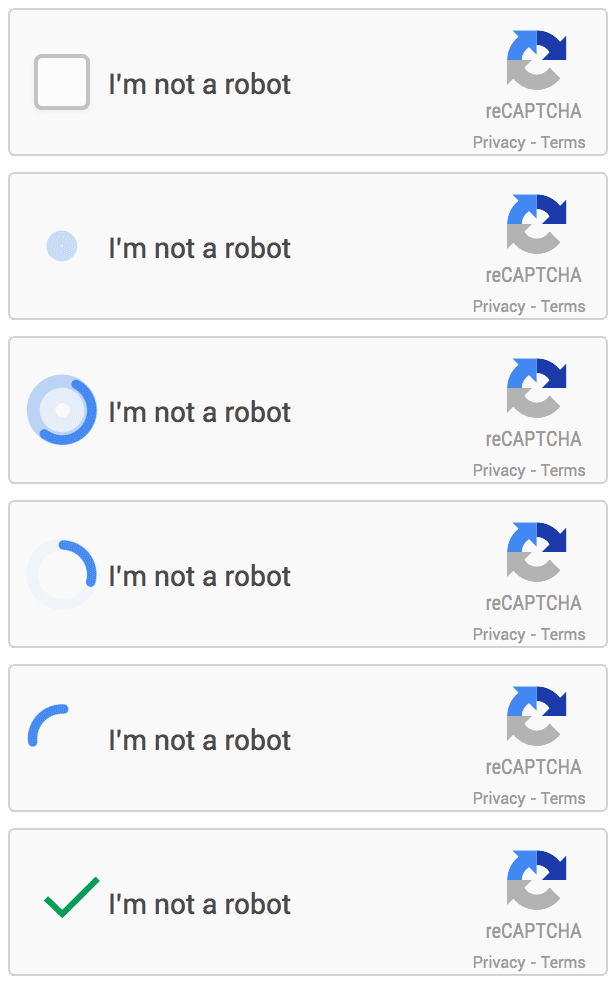
reCAPTCHA v2, commonly known for its “I’m not a robot” checkbox, works by analyzing how a user interacts with the checkbox rather than just whether it was clicked. When someone clicks it, reCAPTCHA observes subtle behavioral patterns such as mouse movements, the speed and delay of the click, and overall interaction flow. If these signals appear natural and human-like, the system immediately verifies the user without further steps. However, if the action seems automated — for instance, triggered programmatically or lacking normal movement patterns — reCAPTCHA activates a secondary verification layer: the familiar image or puzzle challenge. These visual tests, such as “Select all squares with traffic lights,” are powered by machine learning and are constantly updated with new image sets. Google also measures how quickly and accurately users respond. While real humans can easily adapt, bots using image-recognition or scripted solutions struggle with the randomness, time limits, and evolving datasets — making this version both user-friendly and highly effective against automated abuse.
The goal is to minimise friction for real humans while making it expensive and time-consuming for bots.
Common Misconceptions (let’s clear these up)
“reCAPTCHA = perfect protection.”
Not quite. reCAPTCHA is a layer of defense, not a silver bullet.
While it filters out most automated scripts, advanced bots can still slip through.
That’s why it should work alongside other measures like rate limiting, a Web Application Firewall (WAF), and server-side validation to form a complete security stack.
“v3 blocks more than v2 because it’s newer.”
Newer doesn’t automatically mean stricter.
reCAPTCHA v3 is score-based, not challenge-based. It assigns a “human likelihood” score (0.0–1.0) and lets you decide what happens next.
If your site’s threshold is too strict (e.g., rejecting users below 0.8), even real visitors may get blocked.
Tuning it to the right level and combining it with other checks makes v3 effective — but only when properly configured.
“We installed it once; job done.”
reCAPTCHA isn’t a set-and-forget feature.
Bot behavior evolves constantly — they learn, adapt, and mimic humans better every year.
Regularly review your traffic logs, reCAPTCHA scores, and attack patterns to keep your defense current.
Adjust thresholds or upgrade versions when you notice more false positives or bypass attempts.
“Challenges always hurt conversion.”
That used to be true when every visitor had to solve puzzles or click images.
But modern reCAPTCHA versions, especially invisible or score-based ones, minimize friction for real users.
A smartly tuned system only challenges suspicious activity — letting genuine visitors flow through smoothly while keeping bots out.
The result: security without sacrificing conversion rates.
CLDY.com generally recommends starting with Google reCAPTCHA v2 Invisible for most website forms because it provides a smooth, frictionless experience for real users while blocking the majority of automated spam submissions quietly in the background. However, we always advise clients to “go by ear” — monitor your form activity for a week or two after enabling it.
At CLDY, our system administrators frequently review websites that use reCAPTCHA v3 (invisible) and have observed that, in many real-world cases, it’s not very effective against fake or automated form submissions.
Because reCAPTCHA v3 operates silently in the background and relies on a risk-score system, some bots can still slip through if their behavior appears “human enough.” This often leads to continued issues like spam contact form entries, fake sign-ups, or junk inquiries — even when the site owner believes they’re protected.
If you still notice fake or bot submissions slipping through, that’s a clear signal to tighten the verification level. In such cases, we recommend switching to the v2 Checkbox (“I’m not a robot”) version, which includes the visual image challenge step. This adds a more visible layer of protection that bots struggle to bypass. The goal is to keep your form experience as user-friendly as possible while staying adaptable — start invisible for convenience, and only move to the image-based version if your site’s spam volume shows that extra verification is needed.
How-To: Add reCAPTCHA to Your Site (step-by-step)
| Step | Action | Details / Notes |
|---|---|---|
| Step 1 | Choose the version | – Want something quick and familiar? Use reCAPTCHA v2 checkbox. – Want minimal UI friction? Choose v2 Invisible or v3 (requires tuning). |
| Step 2 | Register your domain to get keys | – Go to the Google reCAPTCHA Admin Console. – Register your domain. – Copy your Site Key (frontend) and Secret Key (backend). |
| Step 3 | Add the client-side script | – Paste the provided <script> tag into your webpage.– If using a CMS (e.g. WordPress, Magento), install a plugin or module instead. |
| Step 4 | Wire up the form | – v2 Checkbox: Add the widget directly to your form. – v2 Invisible: Bind it to the submit button. – v3: Call grecaptcha.execute() and attach the token to your form submission. |
| Step 5 | Verify on the server | – Send the token with your Secret Key to Google’s verify endpoint. – For v3, check the returned score and decide whether to accept, challenge, or block. – Log these decisions to fine-tune later. |
| Step 6 | Test and tune | – Try normal and invalid submissions, plus repeated quick submits. – Review logs for at least a week. – Adjust v3 thresholds or introduce a secondary step if needed. |
Final Word
Google reCAPTCHA is an easy first step to protect your forms and funnels. But it works best when you treat it as part of a balanced security stack—right thresholds, smart fallbacks, and a WAF watching your edge. If you want help making it secure yet smooth for your users, Qoxy’s team can implement, tune, and maintain the full setup for you—so you get clean leads, faster sites, and fewer headaches.


